![Teethan_logo.png]](https://support.teethan.com/hs-fs/hubfs/Teethan_logo.png?height=50&name=Teethan_logo.png)
First of all, make sure that, once the probe is turned on, its LED blinks with a white-colored LED.
If the USB receiver is properly recognized by Teethan  but either one or more probes do not connect, perform the following actions:
-
Go to the Settings Menù by clicking on the
 icon in top right corner
 -
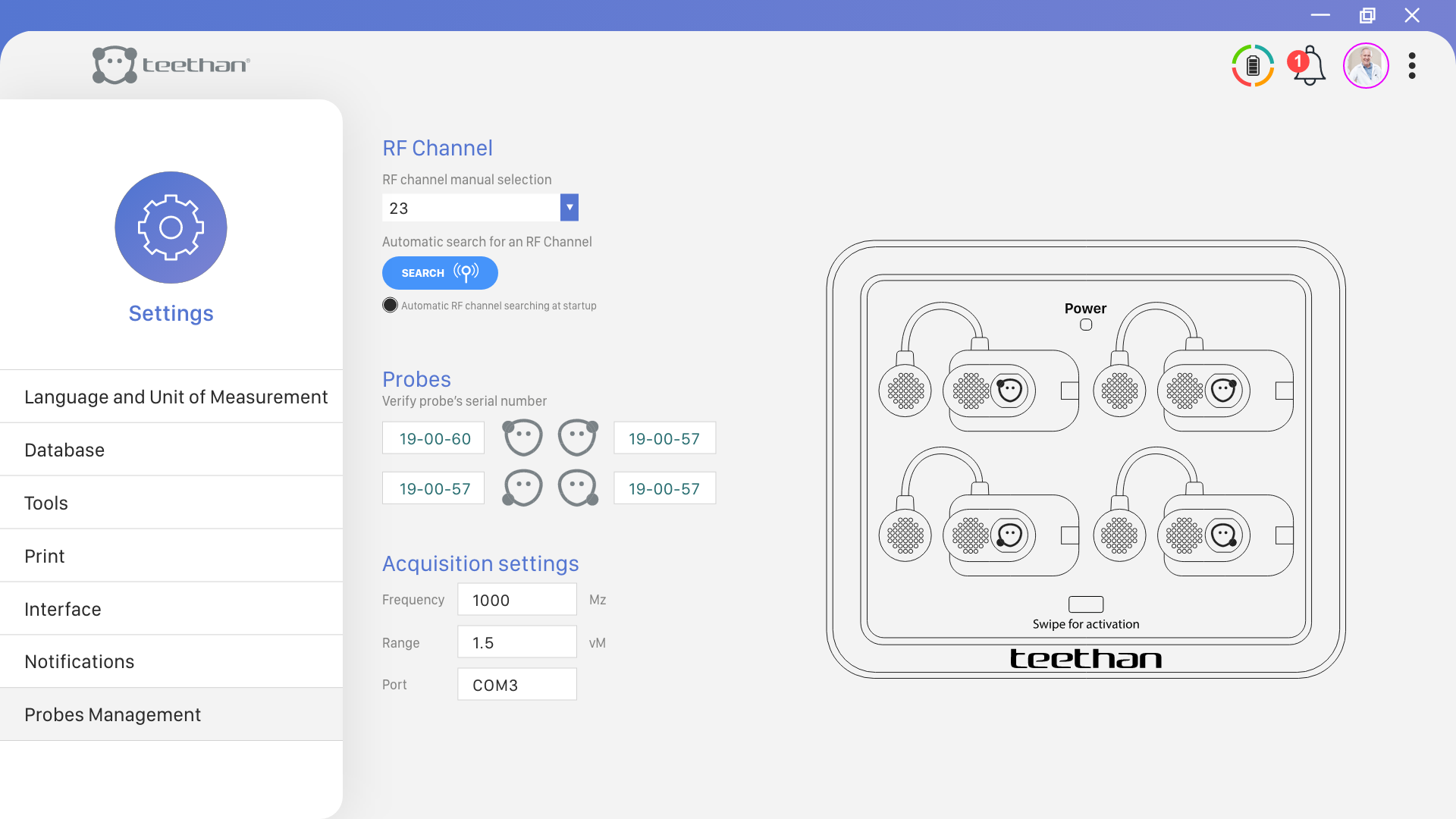
In the first left third of the screen, select Probes Management
-
Turn off all probes by placing them back on the charging station (it being connected to a power supply)
-
Click on
 and wait for the system to find the best communicating channel for the probes to latch with the USB receiver
 -
Once the green banner tells you that the modification has been processed, try turning on the probes again to see if the communication has been restored
🚨⚠️If the issue persists or any of the previous steps fail, please, contact Teethan Customer Care Team at support@teethan.com